
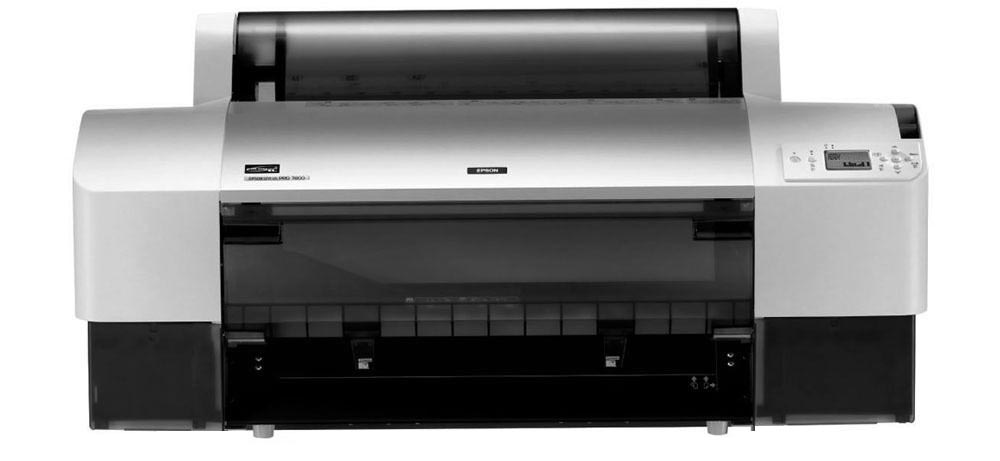
For Epson Pro 4000, 4800, 4880, 7800, 7880, 9800, and 9880 printers.
There often comes a time when you need to cancel the initial fill process on your printer. Many people want to clean their printers with PiezoFlush or convert their printers to Piezography ink. With wide format printers, this often requires an “initial fill” procedure to flush the old ink out and the new ink in. If there is some problem with the printer or cartridges (or power going to the printer) during this process, the printer will often start back at the beginning of its purge cycle and waste a TON of ink. In certain exceptional circumstances, this can get the printer stuck in a cleaning cycle forever.
We found a way to cancel an InitFill process mid-track!
SEQUENCE 1
Turn off or unplug your pesky init-fill-stuck printer.
- Turn on the printer and make sure to simultaneously hold down the Centre(*), Down(v) and Right(>) buttons at the same as you turn the printer on.
- The LCD display will show ‘SELF TESTING’.
- Press the Down(v) button to scroll down until ‘Parameter’ appears on the LCD display.
- Press the Right(>) button.
- The LCD Display shows ‘Initialize’
- Press the Down(v) button to scroll down the display until ‘Update’ appears on the LCD display.
- Press the Right(>) button.
- The display shows ‘JM Init. FILL’.
- Press the Down(v) button to scroll down the display until ‘INK PARAMETER’ appears on the LCD display.
- Press the Right(>) button
- The LCD display will show ‘Set’
- Press the Down(v) button to scroll down the display until ‘Reset’ appears on the LCD display.
- Press the Centre(*) button.
- The LCD Display shows ‘Update Param ?’
- Press the Centre(*) Button.
- The menu display returns (not important, but it mentions ‘HeadWashFlg’)
- Turn off the printer.
SEQUENCE 2
- As before, turn on the printer and make sure to simultaneously hold down the Centre(*), Down(v) and Right(>) buttons at the same as you turn the printer on.
- The LCD display will show ‘SELF TESTING’.
- Press the Down(v) button to Scroll down until ‘Parameter’ appears on the LCD display.
- Press the Right(>) button.
- The LCD Display shows ‘Initialize’
- Press the Down(v) button to scroll down the display until ‘Update’ appears on the LCD display.
- Press the Right(>) button.
- The display shows ‘JM Init. FILL’.
- Press the Down(v) button to scroll down the display until ‘INK PARAMETER’ appears on the LCD display.
- Press the Right(>) button
- The LCD display will show ‘Set’
- Press the Centre(*) Button.
- The LCD Display shows ‘Update Param ?’
- Press the Centre(*) Button.
- The menu display returns (not important, but it mentions ‘HeadWashFlg’)
- Turn off the printer.
SEQUENCE 3
- Put a sheet of paper in the printer (A4 copier paper is OK)
- Turn on the printer as you would do normally (i.e. no buttons held down)
- The printer will ask you to press pause to start Ink Charging
DO NOT Press Pause!
Note – If it doesn’t ask this then you don’t need to carry out stage 4 – our printer did want to charge inks - Turn off the printer
SEQUENCE 4
- Turn on the printer and make sure to simultaneously hold down the Centre(*), Down(v) and Right(>) buttons at the same as you turn the printer on.
- The LCD display will show ‘SELF TESTING’.
- Press the Down(v) button to Scroll down until ‘Parameter’ appears on the LCD display.
- Press the Right(>) button.
- The LCD Display shows ‘Initialize’
- Press the Down(v) button to scroll down the display until ‘Update’ appears on the LCD display.
- Press the Right(>) button.
- The display shows ‘JM Init. FILL’.
- Press the Down(v) button to scroll down the display until ‘INK PARAMETER’ appears on the LCD display.
- Press the Right(>) button.
- The LCD Display shows ‘Init Fill’ and ‘Set’
- Press the Down(v) button to scroll down the display until ‘Reset’ appears on the LCD display.
- Press the Centre(*) Button.
- The LCD Display shows ‘Update Param ?’
- Press the Centre(*) Button.
- The menu display returns (not important, but it mentions ‘HeadWashFlg’)
- Turn off the printer
- When you turn the printer back on it will go to ready. YAY!
Thank you, thank you, thank you. You have saved me a ton of ink money!
I need to cancel power cleaning on my 4000; I tried to follow these directions, but the menu
for the 4000 is different, as is the control panel, no * center button, and no “parameter” in the
menu, and the power clean starts and requests raising and lowering ad infinitum. Help! Can’tfind anything in forums, just wasted TONS of ink, finally, after several attempts, shut off the printer
until I can find an answer. In between a couple of cleanings, I turned off the counters because
carts were blinking rest carts randomly, after that, the pwr cleans will not go away,can’t reset
to default didn’t matter, now endless power clean mode.
Dear Jan. Sorry to hear of your troubles.
To get to the maintenance menu I believe you hold down the [left-arrow] [down-arrow] [up-arrow] when turning on the printer.
best,
Walker
Thanks for all the awesome work.
Anybody know of any mods you can make to the ink lines to manually charge them, and also to help remove little bubbles?
I’m thinking a kind of in line valve which only lets ink through but stops de bubbelses
On more expensive printers these are called “mini degas filters.”
hmm doesn’t work for me. starts up after the 4th sequence and says “cleaning”..
any one else found away to cancel init fil. wasted a lot of ink already.
What printer model do you have?
What printer model do you have exactly? 4880? 9880?
Having same problem as Christian Hogue. Says ‘cleaning’ after 4th sequence and starts all over again.
This is a 7800 with inkjetmall cartridges.
I believe the problem is that the cleaning flag is set, as opposed to the initial fill, but the self-test screen doesn’t have an option to reset it in the parameters.
Are you canceling an initial fill or a power clean? If initial fill it won’t be saying cleaning as it will be saying “charging”.
-w
Trying to cancel a power clean
I see. Well, I have not investigated the cancelation of a power clean so I can’t help you there yet.
You should be able to reset ALL parameters though if you dig around in the menus a bit.
-Walker
hi walker , did all this steps and my machine (pro 9800) still doing the cleaning 🙁 can you please help me ? willing to paypal you for you time thank you
[email protected]
if you have any luck please let me know having the same problem 🙁
Dear Everyone. This is an article for canceling an initial fill, not a power clean. For all I know, the power clean can not be canceled. I have verified the initial fill can be canceled on all x8xx printers but please, I can’t offer support on canceling power cleanings or anything beyond this article at the moment. If you are unable to cancel your initial fill, then you are simply not doing the steps correctly as this process described above simply resets the NVRAM to a base state.
Hmmm
I’ve been told by an X Epson tech. that the power clean will reset itself if it gets into a loop on the 3 rd time through..